Introduction
A recent trend that has been going on for several years is Cloud. It provides computing resources and services that can be accessed from anywhere, and the convenience this brings is enormous. This means that we are no longer dependent on our own resources, and we can continue previous work by accessing cloud resources wherever we are and at any time.
In fact, it is developers who benefit from the cloud rather than users who use the service. From the user’s point of view, it is difficult to feel the difference from the legacy server regardless of cloud service, but from the developer’s point of view, there are clear advantages in server management by introducing the cloud.
This is not the only benefit of the cloud for developers. Building a development server allows you to escape dependencies in the development environment. Work done locally eliminates the need to prepare for continuing work on another PC. Of course, there may be a question as to whether this can be solved by managing the project with git. However, it is inconvenient to prepare dependent environments every time on a different PC.
Especially for someone like me who wants to code in the military, there is nothing more useful than a cloud environment.
Representative cloud providers include AWS(Amazon Web Service), MS Azure, and GCP(Google Cloud Platform). AWS provides Linux instances that can be used for 750 hours per month for one year, and Azure also provides free credits. However, what we will introduce today is GCP, which provides lifetime free instances.
The benefits that GCP provides to new members are as follows.
- Lifetime free instance
- $300 credit available for 3 months
Create Instance
Before creating an instance, join Google Cloud Platform (GCP). The signup process is not that difficult, so I won’t explain it further. If you have registered as a member, first create a project with any name. To do this, connect to Console and proceed.
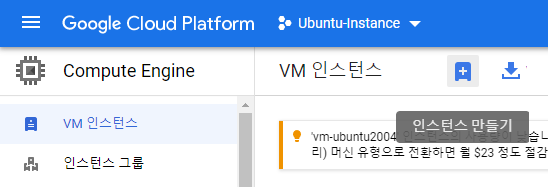
Once all of the previous processes have been completed, an instance is created. In the created project, click the hamburger menu and click Compute Engine-VM instance to enter, and click the plus button shown in the photo above to start creating an instance.
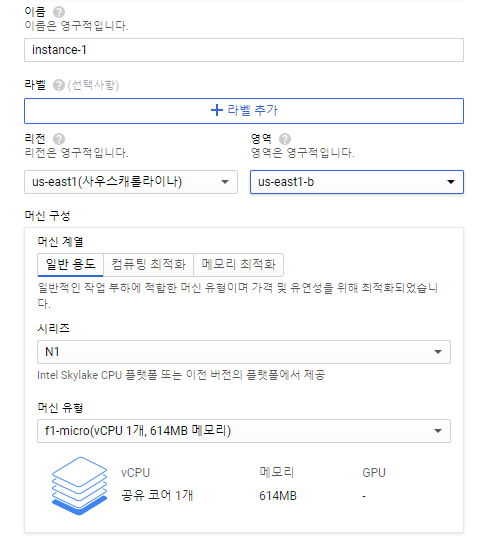
Here, you can name it whatever you want, and the important parts are the region and machine configuration. There are conditions to create Lifetime Free Instance. First, the region must use us-east1-b and the machine type must use f1-micro.
If your goal is to use the $300 credit provided, we recommend configuring it with a different region and machine type. This is because the performance of lifetime free instances is very low.
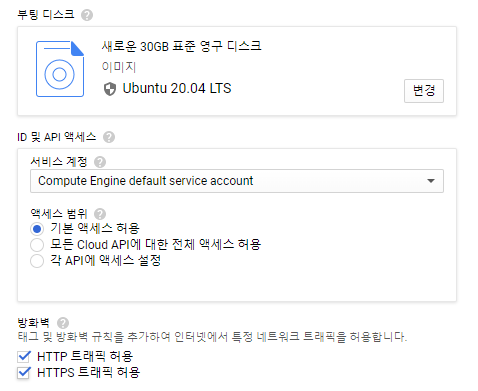
All you have to configure now are the boot disk and firewall settings. If you want to configure a server to use as a web server, you must allow HTTP and HTTPS.
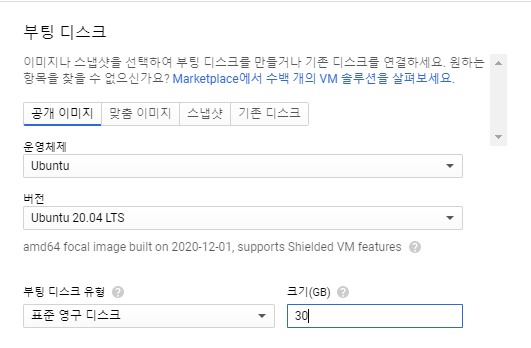
You can select a different OS by pressing the Change button in the boot disk settings, but I preferred Ubuntu and selected Ububtu 20.04 LTS. For reference, disk space of up to 30GB is provided free of charge.
When you set this and click Create, an instance is created, and you can easily connect and use it using the web SSH connection supported by GCP.